
Log In
After receiving the email with your username and password you can access your CRM.
The first access will be done with the generated password (you can change it after) and clicking on "Log In".
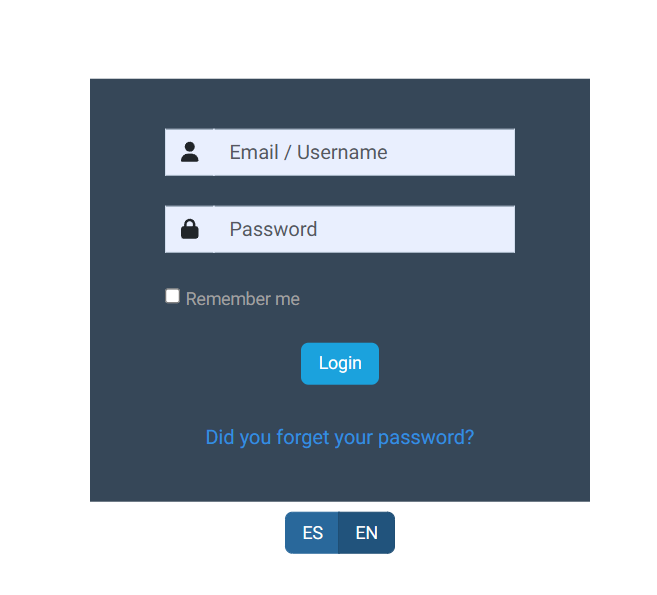
Forgot password
If you forgot your password or want to reset it you must click on "Forgot your password?" And enter your username or email.
After this, an email will be sent with a key to enter a new password.
This key must be copied and pasted into the tab "Lost Password". Then, the software will ask you to enter your new password.
Dashboard
- Sidebar, in this bar you will see:
- Analytics based on your lists
- Favorite contacts
- Contacts to close
- Sales support comments
- Lost Leads
- All account types with the color assigned by the administrator, and the total of contacts in each of the accounts. By selecting one, contacts will be filtered.
- Add new: By clicking, we can add new contacts
- Filter: All filters will be deployed based on the lists or dates, assigned by the administrator.
- At the first login to Rootnet, this is where we will generate the initial template along with the import or export of your database.
- Modules: You will have access to all active modules depending on the permission given by the administrator
- Home and Notifications, In these two icons you can return to the home page from where you are and see the notifications regarding your user or create accounts.
- If you have any questions, by clicking this link you will send a message to our Customer Service Team.
- Help module: Features videos and explanatory guide to each of the functions of CRM. Change of language.